How to Set Up an SSH Key for GitHub (and What an SSH Key Actually Is)
Learn what an SSH key is, then generate one, add it to GitHub, test the connection, and fix "Permission denied (publickey)" on macOS, Windows, or Linux.
GitHub no longer accepts your account password when Git pushes or pulls over the command line. According to GitHub’s About remote repositories page, you need either HTTPS with a personal access token (or a credential helper such as Git Credential Manager) or an SSH key. Once an SSH key is set up and loaded, GitHub says you can connect “without supplying your username and personal access token at each visit.”
This guide puts GitHub’s setup flow for macOS, Windows, and Linux on one page. Every command and expected-output block is copied from GitHub Docs (checked 9 November 2026), not from our own terminal, so your paths, process IDs, and fingerprints will differ.
What an SSH key is (the short version)
An SSH key is a matched pair of files:
- The private key stays on your computer. Microsoft’s OpenSSH guide calls each private key file “the equivalent of a password.” Anyone who gets a copy can sign in as you wherever that key is trusted.
- The public key is the file ending in
.pub. You give it to GitHub.
When you connect, your SSH client uses the private key to create a digital signature, and the server checks it against the public key on file. RFC 4252, the SSH authentication standard, says possession of the private key “serves as authentication.” The ArchWiki adds that a key’s passphrase only unlocks the key on your own machine and is not sent to the server. Our passkey explainer covers the same public/private idea for website sign-in.
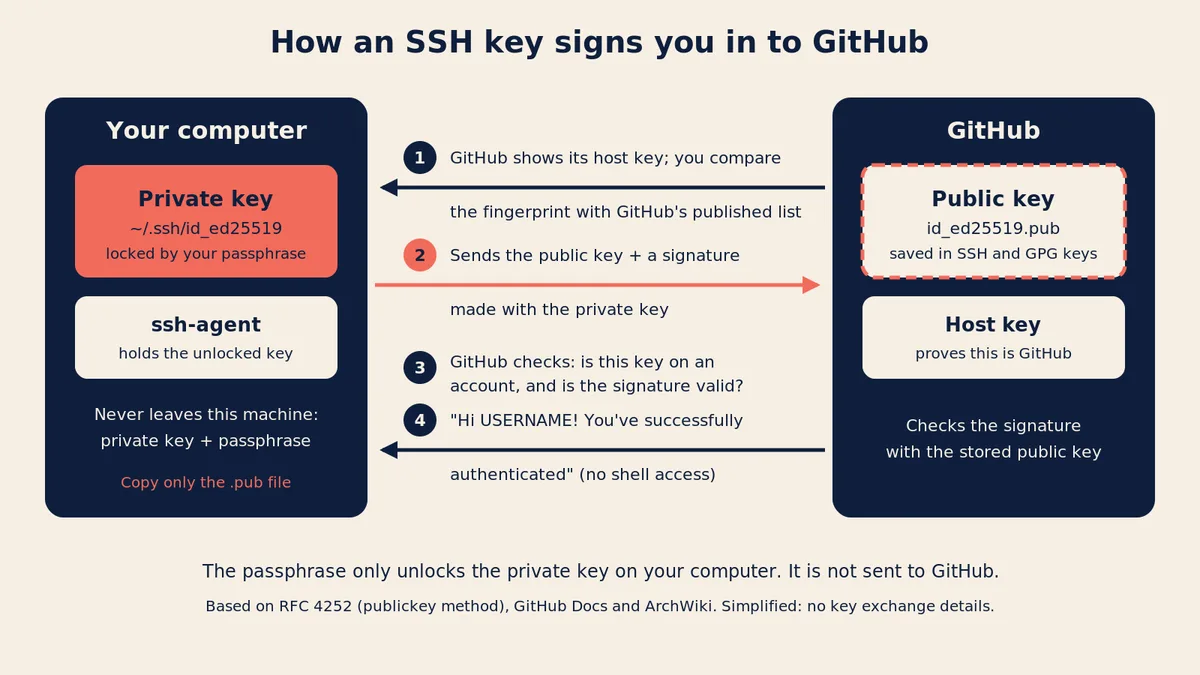
The one rule to remember: only ever paste or upload the .pub file. Never share, email, or upload the private key file, which has the same name without .pub.
SSH key, HTTPS token, or GitHub CLI?
SSH is one of three documented ways to authenticate Git on the command line. This table compares them using only GitHub’s own documentation.
| SSH key | HTTPS + personal access token (PAT) | GitHub CLI (gh auth login) |
|
|---|---|---|---|
| What you keep on your computer | A private key file, ideally protected by a passphrase [1] | A token that you enter “instead of your password” [2] | An authentication token from a browser sign-in, or a PAT you pass in [3] |
| Where it is stored | ~/.ssh/ by default; the ssh-agent holds it unlocked, and on macOS the passphrase can go in your Keychain [1] |
Typed at each prompt unless a credential helper caches it. Git Credential Manager uses the macOS keychain, Windows Credential Manager, or a Linux backing store you choose [4] | The system credential store. If none is found, gh falls back to a plain-text file [3] |
| Effect of turning on 2FA | “Enabling 2FA doesn’t change how you authenticate” over SSH URLs [5] | You must use a PAT as the password over HTTPS [5]; with Git Credential Manager you sign in through a browser window and complete the 2FA challenge there instead [4] | The default sign-in is a web-based browser flow [3], where GitHub’s normal website 2FA applies [5] |
| How to revoke it | Delete the key under Settings, SSH and GPG keys [6] | Delete it under Settings, Developer settings, Personal access tokens [2] | gh auth logout only removes the local login and “does not revoke authentication tokens”; revoke the GitHub CLI app under authorized OAuth apps instead [7][8] |
| Automatic expiry | GitHub deletes SSH keys unused for a year [9] | GitHub removes PATs unused for a year and recommends setting an expiration [2] | GitHub revokes OAuth tokens unused for a year [10]; --expiring asks for refreshing tokens, but gh calls this “a preference, not a guarantee” [3] |
| Firewalls and proxies | “Might refuse” SSH; port 443 is a documented workaround [11][12] | Works “even if you are behind a firewall or proxy” [11] | Depends on the Git protocol you pick during login (ssh or https) [3] |
Table sources: [1] Generating a new SSH key; [2] Managing your personal access tokens; [3] gh auth login manual; [4] Caching your GitHub credentials in Git; [5] Accessing GitHub using two-factor authentication; [6] Reviewing your SSH keys; [7] gh auth logout manual; [8] Reviewing your authorized OAuth apps; [9] Deleted or missing SSH keys; [10] Token expiration and revocation; [11] About authentication to GitHub; [12] Using SSH over the HTTPS port. The 2FA cell for GitHub CLI is our reading of [3] and [5] together; GitHub’s CLI manual does not mention 2FA directly. Organizations that use SAML single sign-on also require you to authorize a PAT or SSH key before it can reach their resources [11].
GitHub says HTTPS is “easier to set up than SSH,” and warns that tokens “are like passwords” [2]. None of the three is safe if someone copies the stored secret: an unprotected private key, a cached token, or a plain-text gh token file.
Decision aid: should you use SSH or HTTPS?
Editorial guidance based on the table above, not a GitHub recommendation.
- SSH is blocked on port 22 and port 443 → HTTPS with Git Credential Manager or GitHub CLI.
- You want one setup per computer and no token expiry to track → an SSH key with a passphrase in the ssh-agent. GitHub still deletes keys unused for a year.
- You already use GitHub CLI →
gh auth loginsets up either protocol; withsshit finds or creates a key to upload [3]. - It’s a CI job, not a person → not this guide. GitHub points Actions workflows to the built-in
GITHUB_TOKEN[2].
Step 1: Check for existing keys
GitHub’s checking for existing SSH keys page says to open Terminal on macOS or Linux, or Git Bash on Windows, and run:
ls -al ~/.sshLook for a public key with one of GitHub’s supported default names: id_rsa.pub, id_ecdsa.pub, or id_ed25519.pub. If you see a pair you want to use, such as id_ed25519 and id_ed25519.pub, skip to Step 3. If you get an error that ~/.ssh does not exist, you have no key in the default location.
GitHub dropped support for DSA keys (ssh-dss) on March 15, 2022, and you can’t add new ones. If your only key is an old DSA key, make a new one.
Step 2: Generate a new SSH key
GitHub’s key generation page recommends Ed25519. The command is the same on all three systems. Replace the example email with your GitHub email address; GitHub says it is used “as a label.”
ssh-keygen -t ed25519 -C "your_email@example.com"On a legacy system without Ed25519 support, GitHub gives ssh-keygen -t rsa -b 4096 -C "your_email@example.com" instead.
Expected output. GitHub’s docs show this first line (with your algorithm in place of ALGORITHM):
> Generating public/private ALGORITHM key pair.Then ssh-keygen asks where to save the key. Press Enter to accept the default. GitHub shows the prompt per platform:
| Platform | Prompt shown in GitHub Docs |
|---|---|
| macOS (Terminal) | Enter a file in which to save the key (/Users/YOU/.ssh/id_ALGORITHM): [Press enter] |
| Windows (Git Bash) | Enter file in which to save the key (/c/Users/YOU/.ssh/id_ALGORITHM):[Press enter] |
| Linux (Terminal) | Enter a file in which to save the key (/home/YOU/.ssh/id_ALGORITHM):[Press enter] |
For an Ed25519 key, id_ALGORITHM becomes id_ed25519. If a key already exists there, ssh-keygen may ask to overwrite it; GitHub recommends creating a custom-named key instead.
Last, set a passphrase:
> Enter passphrase (empty for no passphrase): [Type a passphrase]
> Enter same passphrase again: [Type passphrase again]
GitHub’s page on working with SSH key passphrases explains why: if someone gains access to your computer, a key without a passphrase gives them access to every system that trusts it. A passphrase is a protection, not a guarantee; it does not help if malware can use the key while it is unlocked in your agent. If you skipped it, add one later with ssh-keygen -p -f ~/.ssh/id_ed25519.
Windows note. Microsoft runs ssh-keygen in PowerShell with Windows’ own OpenSSH; GitHub says that and Git for Windows’ bundled OpenSSH can coexist. This guide follows GitHub’s Git Bash route.
Hardware security keys. GitHub also documents ssh-keygen -t ed25519-sk -C "your_email@example.com" for a key on a physical security key, which must be plugged in each time (or ecdsa-sk if the device lacks Ed25519).
Step 3: Add the key to the ssh-agent
The ssh-agent is a background program that holds your unlocked key, so you type the passphrase once instead of on every push. This step differs most by platform.
macOS
GitHub says to use the built-in macOS ssh-add, not one installed through Homebrew or MacPorts.
-
Start the agent:
eval "$(ssh-agent -s)"Expected output (your number will differ):
> Agent pid 59566 -
On macOS Sierra 10.12.2 or later, check for a config file with
open ~/.ssh/config. If GitHub’s example output appears,> The file /Users/YOU/.ssh/config does not exist., create it withtouch ~/.ssh/config. Then add these lines, changing the file name if yours differs:Host github.com AddKeysToAgent yes UseKeychain yes IdentityFile ~/.ssh/id_ed25519If you did not set a passphrase, leave out the
UseKeychainline. -
Add the private key to the agent and save the passphrase in your Keychain:
ssh-add --apple-use-keychain ~/.ssh/id_ed25519On macOS versions before Monterey (12.0), this option was
-K. Without a passphrase, run it without--apple-use-keychain. GitHub’s macOS page does not show this command’s output.
Windows
-
In a PowerShell window opened as administrator, let the ssh-agent service run and start it:
Get-Service -Name ssh-agent | Set-Service -StartupType Manual
Start-Service ssh-agent
Microsoft notes the service is disabled by default and shows
-StartupType Automatic, which starts it on every reboot. GitHub usesManual. Both are documented. -
In a regular terminal without administrator rights, add your key:
ssh-add c:/Users/YOU/.ssh/id_ed25519GitHub’s Windows page does not show expected output for these commands.
If Git then keeps asking for your passphrase, see the Windows scenario below for GitHub’s core.sshCommand fix.
Linux
-
Start the agent with
eval "$(ssh-agent -s)". Expected output:> Agent pid 59566(your number will differ). GitHub notes some environments needexec ssh-agent bashorexec ssh-agent zshinstead. -
Add your key:
ssh-add ~/.ssh/id_ed25519GitHub’s Linux troubleshooting example shows a passphrase prompt followed by a confirmation line in this shape:
> Enter passphrase for /home/YOU/.ssh/id_ed25519:
> Identity added: /home/YOU/.ssh/id_ed25519 (/home/YOU/.ssh/id_ed25519)
(GitHub’s example uses
id_rsa; we substitutedid_ed25519.)
Check on any platform: ssh-add -l -E sha256 should print a line with a SHA256: fingerprint and your key’s path. GitHub’s example is 2048 SHA256:274ffWxgaxq/tSINAykStUL7XWyRNcRTlcST1Ei7gBQ /Users/USERNAME/.ssh/id_rsa (RSA). If it prints nothing, the key is not loaded.
Step 4: Add the public key to your GitHub account
These steps follow GitHub’s adding a new SSH key page. First copy the public key exactly, without extra lines or spaces:
| Platform | Command | What happens |
|---|---|---|
| macOS | pbcopy < ~/.ssh/id_ed25519.pub |
Copies the key to the clipboard; nothing is printed |
| Windows (Git Bash) | clip < ~/.ssh/id_ed25519.pub |
Copies the key; nothing is printed |
| Windows (PowerShell) | cat ~/.ssh/id_ed25519.pub | clip |
GitHub’s alternative, because < can cause a ParseError in PowerShell |
| Linux | cat ~/.ssh/id_ed25519.pub |
Prints the key; select and copy it |
Check the file name ends in .pub before you copy anything. Then:
- In the upper-right corner of any GitHub page, click your profile picture, then click Settings.
- In the “Access” section of the sidebar, click SSH and GPG keys.
- Click New SSH key or Add SSH key.
- In the “Title” field, add a label you will recognize, such as “Personal laptop.”
- Select the key type. Choose authentication for pushing and pulling; signing is a separate use.
- In the “Key” field, paste your public key.
- Click Add SSH key.
- If prompted, confirm access to your GitHub account.
GitHub also documents gh ssh-key add for adding a key from the terminal.
Step 5: Test the connection
GitHub’s testing your SSH connection page uses one command on every platform:
ssh -T git@github.comExpected output, first time:
> The authenticity of host 'github.com (IP ADDRESS)' can't be established.
> ED25519 key fingerprint is SHA256:+DiY3wvvV6TuJJhbpZisF/zLDA0zPMSvHdkr4UvCOqU.
> Are you sure you want to continue connecting (yes/no)?
Do not type yes on reflex. Compare the fingerprint against GitHub’s published SSH key fingerprints. On 9 November 2026, that page listed these RSA, ECDSA, and Ed25519 fingerprints (it also lists a DSA fingerprint marked “closing down”):
SHA256:uNiVztksCsDhcc0u9e8BujQXVUpKZIDTMczCvj3tD2s(RSA)SHA256:p2QAMXNIC1TJYWeIOttrVc98/R1BUFWu3/LiyKgUfQM(ECDSA)SHA256:+DiY3wvvV6TuJJhbpZisF/zLDA0zPMSvHdkr4UvCOqU(Ed25519)
GitHub’s page is the authority, not this article. If it matches, type yes. Expected output on success:
> Hi USERNAME! You've successfully authenticated, but GitHub does not
> provide shell access.
Check that your own username appears. “Does not provide shell access” is normal, and GitHub says the command exits with code 1.
Step 6: Switch an existing repo from HTTPS to SSH
A repo cloned with an https:// address keeps using HTTPS until you change it. Following GitHub’s managing remote repositories page, in the project folder run:
git remote set-url origin git@github.com:OWNER/REPOSITORY.git
git remote -v
Expected output:
> origin  git@github.com:OWNER/REPOSITORY.git (fetch)
> origin  git@github.com:OWNER/REPOSITORY.git (push)
If you see fatal: No such remote, check the remote name.
Troubleshooting: error, cause, and fix
Every row is an error GitHub documents, with GitHub’s stated cause and fix.
| Error message | Cause (per GitHub) | Fix (per GitHub) |
|---|---|---|
Permission denied (publickey). |
GitHub rejected the key: no key loaded, wrong key offered, key not on your account, connecting as the wrong user, or using sudo [A] |
Work through the checklist below [A] |
Host key verification failed |
The server presented a key that “doesn’t match” one seen before [B] | Look for an official announcement on github.blog and check the fingerprints page. With no official source, “it is safest not to connect” [B] |
ssh-add: illegal option -- apple-use-keychain |
Your ssh-add is not Apple’s version [C] |
Run /usr/bin/ssh-add --apple-use-keychain ~/.ssh/id_ed25519 [C] |
Bad configuration option: usekeychain |
Your SSH client does not recognize UseKeychain [D] |
Add IgnoreUnknown UseKeychain under Host github.com in ~/.ssh/config [D] |
Agent admitted failure to sign using the key. |
Happens “in rare circumstances” when connecting over SSH on Linux [E] | Run eval "$(ssh-agent -s)", then ssh-add [E] |
| Key already in use | The key is on another account or is a deploy key on a repository [F] | Remove it from the other account or repository, then add it to yours; if you can’t, generate a new key [F] |
ERROR: We're doing an SSH key audit. |
The key you used is unverified, e.g. “due to lack of use” [G] | Review your SSH keys on the settings page and approve or reject the key [G] |
| Git keeps asking for the passphrase (Windows) | Git for Windows’ bundled ssh.exe can’t reach the Windows agent [D] |
Set core.sshCommand to C:/Windows/System32/OpenSSH/ssh.exe [D] |
| SSH connections refused on your network | Firewalls and proxies “might refuse” SSH [H] | Test ssh -T -p 443 git@ssh.github.com; the port-443 hostname is ssh.github.com [I] |
| A key that worked is gone | GitHub deletes keys unused for a year [J] | Generate and add a new key [J] |
Table sources: [A] Permission denied (publickey); [B] Host key verification failed; [C] ssh-add: illegal option; [D] Generating a new SSH key; [E] Agent admitted failure to sign; [F] Key already in use; [G] We’re doing an SSH key audit; [H] About authentication to GitHub; [I] Using SSH over the HTTPS port; [J] Deleted or missing SSH keys. “Key already in use” and the Windows passphrase row describe situations GitHub documents; GitHub does not quote a single exact error string for them. GitHub’s Troubleshooting SSH index lists more.
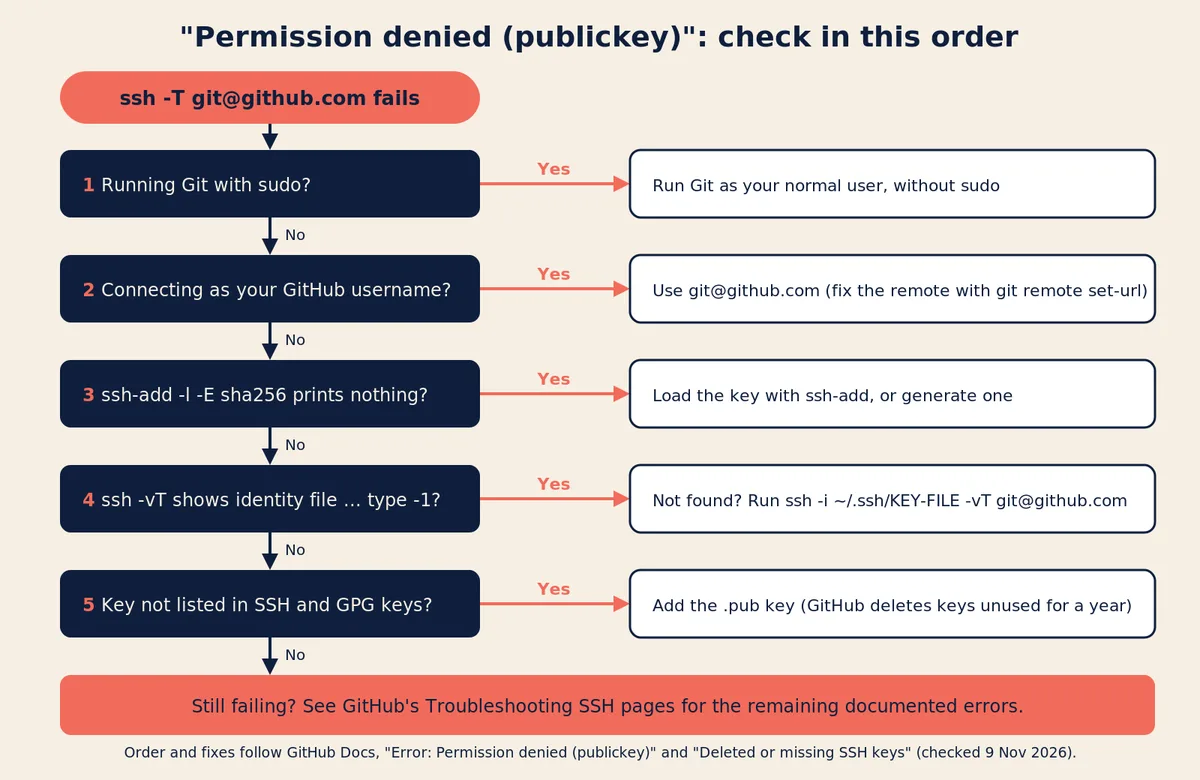
Checklist for “Permission denied (publickey)”
From GitHub’s troubleshooting page, in order:
- No
sudo. A key made as your normal user is not the keysudo git pushlooks for. - Connect as
git. GitHub showsssh -T GITHUB-USERNAME@github.comfailing with this error. - Is a key loaded?
ssh-add -l -E sha256printing nothing means no. - What does SSH try? In
ssh -vT git@github.comoutput,identity file ... type -1means the file wasn’t found;Offering RSA public key: ...means a key was offered. For a non-default name:ssh -i ~/.ssh/KEY-FILE -vT git@github.com. - Is the key on your account? Compare fingerprints under Settings, SSH and GPG keys. GitHub says to delete any key you don’t recognize immediately and contact GitHub Support.
Scenario: a new Windows laptop, start to finish
An illustrative case built only from GitHub’s documented steps and messages. It is not a report of our own setup, and “mai-example” is a made-up account.
Mai already pushes from her Mac over SSH. She gets a Windows laptop and wants to push to mai-example/portfolio from it.
- Check for keys. In Git Bash,
ls -al ~/.sshsays the folder doesn’t exist. Per GitHub, that means no key in the default location. She does not copy her Mac’s private key over; nothing in GitHub’s flow requires it. - Generate.
ssh-keygen -t ed25519 -C "mai@example.com"printsGenerating public/private ed25519 key pair.She presses Enter at the/c/Users/mai/.ssh/id_ed25519prompt and sets a passphrase. - Start the agent. In PowerShell as administrator:
Get-Service -Name ssh-agent | Set-Service -StartupType Manual, thenStart-Service ssh-agent. In a normal window:ssh-add c:/Users/mai/.ssh/id_ed25519. - Upload the public key.
clip < ~/.ssh/id_ed25519.pub, then Settings, SSH and GPG keys, New SSH key, title “Mai’s Windows laptop”, type authentication, paste, Add SSH key. Her Mac’s key stays listed alongside it. - Test.
ssh -T git@github.comshows the first-connection prompt. She checks the Ed25519 fingerprint against GitHub’s list, typesyes, and getsHi mai-example! You've successfully authenticated, but GitHub does not provide shell access. - The snag. She clones with
git clone git@github.com:mai-example/portfolio.git, but everygit pushasks for her passphrase again. GitHub’s key generation page describes exactly this: Git for Windows may use its bundledssh.exe, which “can’t talk to the Windowsssh-agentservice.” - The fix.
git config --global core.sshCommand "C:/Windows/System32/OpenSSH/ssh.exe". Git now uses the Windows OpenSSH client and the agent that holds her key. (GitHub’s alternative is reinstalling Git for Windows with the Use external OpenSSH option.) - Later, when she retires a laptop, she clicks Delete next to its key in SSH and GPG keys. GitHub’s reviewing your SSH keys page says to delete keys that are unrecognized or out of date, so an attacker no longer has access.
On a Mac or Linux machine, steps 3 and 6–7 change: use the platform’s Step 3 instructions above, and the core.sshCommand fix does not apply.
Scenario: you forgot your key’s passphrase
GitHub’s recovering your SSH key passphrase page splits by platform:
- macOS, if you saved the passphrase in the Keychain: open the Keychain Access app, search for SSH, double-click your key’s entry, select Show password, and enter your administrator password.
- Windows and Linux: “there’s no way to recover it.” Generate a new key pair (Steps 2–5), or switch the repo to HTTPS and use a personal access token.
Then delete the old public key from SSH and GPG keys (our suggestion, following GitHub’s advice to remove out-of-date keys).
Using GitLab or Bitbucket? The key-pair idea and ssh-keygen are the same, but menus and test commands differ. Follow GitLab’s SSH docs or Bitbucket Cloud’s SSH docs.
FAQ
What is a Git SSH key?
An ordinary SSH key that Git uses when your remote starts with git@github.com:. Git connects through your SSH client, which reads the private key from disk or gets it from your ssh-agent, which is why GitHub’s Windows fix changes which ssh.exe Git uses.
Does turning on 2FA break my SSH key?
No. GitHub’s 2FA page says enabling 2FA “doesn’t change how you authenticate” over SSH URLs. Over HTTPS, you need a personal access token or a credential helper.