What Is Two-Factor Authentication? SMS vs Authenticator App vs Security Key
Two-factor authentication adds a second step to your login. Compare SMS codes, authenticator apps, push prompts, passkeys, and security keys, and see which to use where.
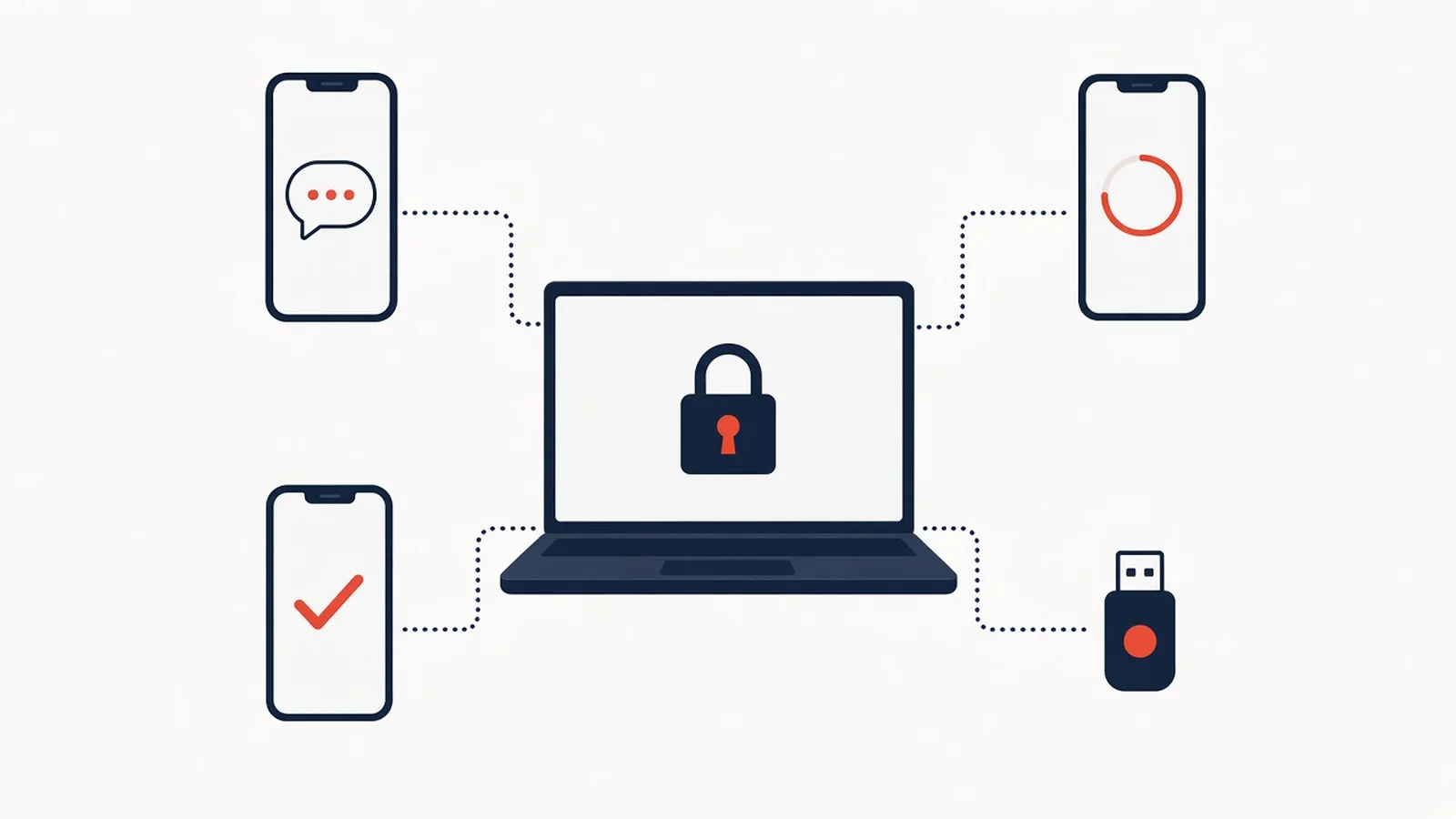
A password on its own is one secret. If someone guesses it, finds it in a breach, or tricks you into typing it on a fake page, they have everything they need. Two-factor authentication adds a second check that the attacker also has to beat.
The methods are not equal, though. A text message code, an authenticator app, a push prompt, a passkey, and a hardware security key all count as “turning on 2FA,” and they fail in different ways. This guide explains each one, compares all six in one table built from NIST, CISA, NCSC and FIDO Alliance guidance, walks through a fake-login-page attack step by step, and suggests which to use for which account.
What two-factor authentication means (2FA vs MFA vs 2-step verification)
Two-factor authentication means you prove who you are with two different kinds of evidence. Security guidance groups that evidence into three categories:
- Something you know, such as a password or PIN.
- Something you have, such as a phone, an app holding a secret, or a security key.
- Something you are, such as a fingerprint or face scan.
The two pieces must come from different categories. NIST’s consumer explainer gives the example of a bank card plus a PIN, and notes that two passwords would not count. OWASP adds that a location or IP address can inform a login decision but is not a factor by itself.
Multi-factor authentication (MFA) is the wider term for two or more factors. 2FA is the two-factor case. Services also call it “2-Step Verification” (Google’s term) or “two-step authentication.” CISA lists these names, along with “2FA,” as different ways to say MFA. In practice you will see all of them in account settings, so look for any of these labels under security or sign-in options.
The main 2FA methods
SMS and email codes
The service sends a short one-time code to your phone number or inbox, and you type it in. It is the most familiar method and works on almost any phone.
It is also the weakest. MDN explains that an attacker can intercept a code in transit, and that SMS is more exposed than email because of weaknesses in phone network routing (SS7), SIM swap scams, and recycled phone numbers. Email codes depend on the security of the email account. If someone already controls your inbox, an emailed code protects nothing. NIST SP 800-63B-4 does not accept email as an out-of-band authenticator at all.
Authenticator apps (TOTP)
So what is an authenticator app? It is an app that generates a new six-digit code every 30 seconds or so. When you set it up, you scan a QR code that gives the app and the service the same secret key. After that, both sides compute the code from that secret and the current time, so nothing needs to be sent to you. The method is called time-based one-time passwords, defined in RFC 6238, which recommends a default 30-second time step.
Because the code is generated on your device, a SIM swap or intercepted text does not reveal it. The weak point is that you still type the code. A convincing fake login page can ask for it and pass it to the real site within its short lifetime. NIST states plainly that OTP authentication is not phishing-resistant.
Push notifications
Instead of a code, the service sends a prompt to an app on a phone you have already signed in to. You tap to approve or deny.
Push is easier than typing a code, and it does not depend on your phone number. Its known weakness is “push bombing,” also called MFA fatigue. CISA describes attackers who already have a password triggering prompt after prompt until the user approves one by mistake or to make them stop.
Number matching is the main fix: the login screen shows a number that you must enter in the app, which ties the approval to the screen in front of you. NIST’s current guidance no longer accepts a plain “approve” tap for out-of-band authentication. If a prompt shows a number or extra details, read them before you approve.
Passkeys
A passkey is a FIDO credential: a private key stored on your device or in your password manager, unlocked with your fingerprint, face, or device PIN. The FIDO Alliance describes passkeys as phishing-resistant and says they can replace password-plus-SMS sign-in, and CISA calls FIDO/WebAuthn “the only widely available phishing-resistant authentication.” A passkey counts as multi-factor only when the service requires and checks the local PIN or biometric step, not just a tap, as OWASP notes. How passkeys sync, and where they are stored, is covered in our passkey explainer.
Hardware security keys
A security key is a small USB, NFC, or Bluetooth device that you plug in or tap. Modern keys use the same FIDO standards as passkeys, so they bring the same origin binding. The private key stays on the physical device.
CISA’s consumer training puts physical tokens with FIDO authentication at the top of its strongest-to-weakest list. The trade-offs are cost, carrying the key with you, and needing a backup if you lose it. OWASP points out that a stolen older (U2F) key that has no PIN can be used by whoever holds it.
Comparison table: which 2FA method resists what
This table compares the six common methods. Factual cells link to the guidance they summarize. The words “yes,” “partial,” and “no” are our plain-English reading of that guidance, not measured scores, and real protection depends on how each service implements the method.
| Method | Phishing resistance | SIM-swap risk | Works offline? | If you lose your phone | Setup effort | Best for (editorial) |
|---|---|---|---|---|---|---|
| SMS code | No: you type the code, so a fake page can collect it (CISA) | High: a SIM swap or SS7 abuse can divert the code (CISA, FBI) | No: needs mobile coverage, and may not reach you abroad (Security in a Box) | Codes follow your number, not the handset, so your carrier can move the number to a new SIM (MDN) | Low: add a phone number. Google may take up to 7 days to trust a new number (Google) | A last-resort fallback when nothing else is offered |
| Email code | No (MDN) | Not tied to your number, but only as safe as the inbox (OWASP) | No: needs internet (Security in a Box) | Works from any device that can reach your email | Low: usually your existing address | Low-value accounts only. NIST does not accept email for out-of-band authentication |
| Authenticator app (TOTP) | No: codes can be relayed (NIST) | Not applicable: codes are generated on the device (CISA) | Yes: generating codes needs no connection (Security in a Box) | Codes are gone unless the app was backed up or moved, so you need backup codes or another method (OWASP) | Medium: install an app and scan a QR code per account (MDN) | A solid default for most accounts that don’t offer passkeys |
| Push prompt | Partial with number matching (NCSC). CISA still lists it as vulnerable to phishing, and plain approve-only push is also open to push bombing (CISA) | Not applicable (CISA) | No: NCSC says it is less likely to suit places where mobile connectivity is unavailable or unreliable (NCSC) | Prompts go only to signed-in devices (Google), so you need another signed-in device or a backup method | Low: sign in to the provider’s app. For Google, that means an Android phone or certain Google apps on iPhone (Google) | Accounts where the provider’s own app is the strongest option offered |
| Passkey | Yes (FIDO Alliance, CISA) | Not applicable (CISA) | Not stated by these sources. The unlock happens on your device and no code is sent to you (see note) | A synced passkey may be on your other devices. A device-only passkey is lost with the device (see our passkey explainer) | Low: create one on a phone or computer and unlock it with your screen lock (Google) | Any account that offers it, especially email and your phone-ecosystem account |
| Hardware security key (FIDO) | Yes (NCSC) | Not applicable (CISA) | Yes: NCSC lists FIDO2 as suitable where mobile coverage is unreliable (NCSC) | Unaffected by phone loss. Losing the key itself needs a registered spare or backup method (Privacy Guides) | Higher: buy a key, check it connects to your devices (Security in a Box), and register a spare | High-value accounts and people who are targeted |
Table notes:
- “Works offline” describes the second factor only. The device you are signing in on still needs to reach the website. The passkey cell is our reading of how FIDO works: the source pages above don’t address offline use for synced passkeys, and signing in on a computer with a passkey stored on your phone involves the two devices communicating.
- “Best for” is editorial guidance that follows the strongest-to-weakest order CISA and NCSC publish. Both write for organizations.
- Sources disagree on where push ranks. NCSC places push apps above code generators, CISA puts number-matched push in the same tier as OTP apps, and NIST SP 800-63B-4 no longer accepts approve-only push at all. We don’t rank push against TOTP.
Two patterns stand out. Only the FIDO-based methods resist a fake login page, because anything you type can be relayed. And a SIM swap can’t reach any method that doesn’t depend on your phone number.
Scenario: a fake login page asks for your code
Here is how the most common attack on code-based 2FA works, as CISA describes it, and what changes with each method. It is a walkthrough of documented behavior, not a test we ran.
- The lure. An email convinces you to visit a site that mimics a real login portal.
- You enter your password. The fake site now has it. The attacker can try it on the real site, which then asks for the second factor.
- The fake page asks for your code. You type the six-digit code from your text messages or authenticator app.
- The code is relayed. NIST explains that typed codes aren’t bound to the session they were meant for, so an impostor site “could relay an authenticator output to the verifier and successfully authenticate.” The code is still valid for its short lifetime, so this works with SMS, email, and app codes alike.
- With push instead, the real site sends a prompt to your phone because the attacker just used your password there. You think you are signing in, so a plain “approve” tap is easy to give by mistake: CISA lists push without number matching as vulnerable to user error. Number matching ties the approval to the screen in front of you, but NCSC still rates push as only partial phishing protection, so deny any prompt you did not expect.
- With a passkey or security key, there is no code to hand over. NIST says WebAuthn picks the authenticator secret “based on the authenticated domain name of the verifier,” so a credential made for the real site won’t answer for a lookalike domain. CISA says that when someone is tricked into logging in to a fake website, “the FIDO protocol will block the attempt.”
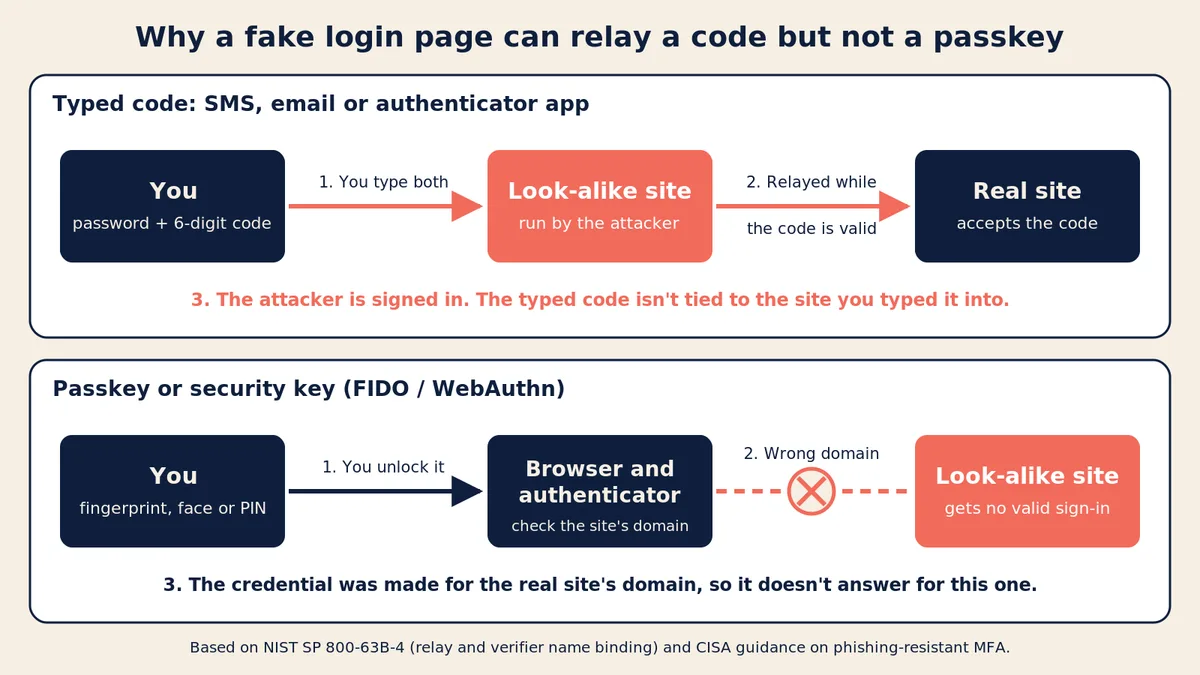
The limitation matters: a passkey protects only the sign-ins that use it. If the account still accepts a password plus an SMS code, the fake page can ask for those instead. That’s why Privacy Guides says an account is only as strong as the weakest method still enabled on it.
Why SMS codes are the weakest option (SIM swaps and phishing)
So, is SMS two-factor authentication safe? It is safer than a password alone. CISA and OWASP both say any MFA is better than no MFA. But it is the method attackers have the most ways around.
SIM swaps. In a SIM swap, a criminal convinces your mobile carrier to move your number to a SIM card they control. The FBI describes criminals impersonating victims, bribing carrier employees, or phishing carrier staff to do this. Once the number moves, your texts and calls go to the criminal. They can then request “forgot password” resets and receive the SMS codes meant for you. The FCC’s SIM swapping tip card says loss of service on your phone, such as it going dark or only allowing 911 calls, is typically the first sign. The FCC adds that eSIMs cut the risk of physical SIM theft but not port-out scams.
Network interception. CISA lists exploitation of SS7, a protocol in phone networks, as a way attackers obtain codes sent by text or voice.
Phishing. A fake login page can ask for your SMS code as easily as your password, as the scenario above shows. Switching from SMS to an app fixes the SIM swap problem but not the phishing problem.
NIST reflects this in its standards. SP 800-63B-4 treats SMS and voice codes over the phone network as its only “restricted” authenticator. Services that use them must offer an unrestricted alternative and explain the risk. CISA’s fact sheet says SMS or voice should be used only as a last resort.
If SMS is your only option for an account, keep it on. Then reduce the SIM swap risk: the FCC suggests asking your carrier to add a PIN or password to your account, and the FBI advises not posting your phone number or financial details publicly.
Which should I use where?
This is editorial guidance, not a rule from any one agency. It applies the FIDO-first, app-next, message-codes-last order that NCSC and CISA publish. NCSC writes for organizations, so treat this as a translation for personal accounts. Use the strongest option each service actually offers.
| Account | Aim for | Keep as fallback | Why |
|---|---|---|---|
| Main email | Passkey or security key | Authenticator app plus backup codes | Password resets for other accounts often land here, and Security in a Box lists accounts you’d need to recover other accounts among those where 2FA is crucial |
| Bank and payment apps | The bank’s strongest option, such as its own app prompt if it offers one | SMS only if it’s the sole option, with a carrier account PIN (FCC) | Banks choose which methods they offer, so the choice is often limited |
| Work account | Whatever your employer’s IT team requires, usually a passkey, security key, or number-matched push | The recovery path your IT team sets up | CISA urges organizations to start planning a move to FIDO (CISA). Your employer controls the settings, so follow its policy |
| Crypto exchange or other high-value account | Hardware security key, with a registered spare | Backup codes stored offline | CISA urges high-value targets to move to phishing-resistant MFA (CISA), and SMS is open to SIM swaps (FBI) |
| Apple, Google, Microsoft account or password manager | Passkey, security key, or the provider’s app prompt | Current recovery details and backup codes | These hold keys to everything else |
| Social, shopping, streaming, gaming | Passkey or authenticator app | SMS if that’s all there is | Any 2FA is a clear improvement over none (CISA) |
Journalists, activists, people in public roles, and anyone who has been targeted before should consider hardware keys on their core accounts. CISA’s training page points to a program that gives free security keys to high-risk communities. Once a stronger method and a safe backup are in place, consider removing SMS where the service allows it (Privacy Guides).
How to turn on 2FA without locking yourself out
Here is how to set up two-factor authentication on an account without trapping yourself. The exact menu labels differ, so follow each service’s official help page.
- Find the setting. Look in the account’s security or sign-in settings for “two-factor,” “2-Step Verification,” or “multifactor.” CISA suggests starting with your most-used accounts.
- Pick the strongest method offered. Use the table above.
- Save backup codes right away. Many services, including Google, give you single-use backup codes. Store them away from your phone: printed somewhere safe, or in a password manager you can reach from another device. Security in a Box warns that anyone who has these codes can use them to log in, so treat them like a password.
- Add a second method. A second registered phone, a spare security key, or an authenticator app alongside a passkey means losing one device does not lock you out. OWASP lists setting up more than one type of MFA as a way to avoid losing access to all of them at once.
- Test it. Sign out and back in once while you still have every device in hand.
- Plan for a phone change. Before you wipe or trade in a phone, move or re-register your authenticator app, because codes do not always transfer on their own.
- Be careful with “remember this device.” Use it only on devices you own and do not share, as Google’s 2-Step Verification help advises.
Finally, never read a code aloud or type one in response to a call or message you did not start. Google’s help states that you will not receive a call from Google to verify a code.
FAQ
How do I set up two-factor authentication?
Open the account’s security or sign-in settings and look for two-factor or 2-Step Verification. Follow the prompts, save your backup codes, and add a second method. For two of the most common accounts, see Google’s 2-Step Verification guide and Apple’s two-factor authentication guide.
Can I turn off two-factor authentication?
Many services let you, but think twice. Security in a Box advises against disabling 2FA once it is set up. Some accounts limit it: Apple says two-factor protection cannot be removed from an Apple Account created with it, and an account that recently turned it on can lower its security only within two weeks of enrolling. If a method is causing trouble, switch to a different method instead of turning protection off.
What is a two-factor authentication code?
It is a short, one-time number that proves you have your second factor. It arrives by text or email, or your authenticator app generates it. It works once and expires quickly. Never share it with anyone, including someone who claims to be from the service.
Which of the following is an example of two-factor authentication?
Look for two different categories. A password plus a code from your phone is 2FA: something you know plus something you have. A bank card plus a PIN is 2FA. A password plus a security question is not, because both are things you know. NIST gives the bank card example and notes that two passwords do not count.
Security key vs authenticator app: which is better?
For resisting fake login pages, a FIDO security key is stronger because nothing is typed (see the scenario above). An authenticator app is cheaper and easier to start with, and many people use both: a key or passkey as the main method, and an app or backup codes as the fallback.