How to Move Your Authenticator App to a New Phone (Without Getting Locked Out)
Switching phones? Move your 2FA codes safely: a before-you-wipe checklist, steps for Google and Microsoft Authenticator, backup codes, and what to do if the old phone is gone.
A new phone usually brings your photos, messages, and apps along with it. Your authenticator codes may not come with them. If the app kept its codes only on the old device and you wipe or trade that phone in first, you can find yourself locked out of every account that asks for a six-digit code.
Start with the situation table, then follow the steps for your app. Every step follows the app maker’s own help pages. Menus change between versions, so if your screen looks different, check the linked page.
What’s your situation?
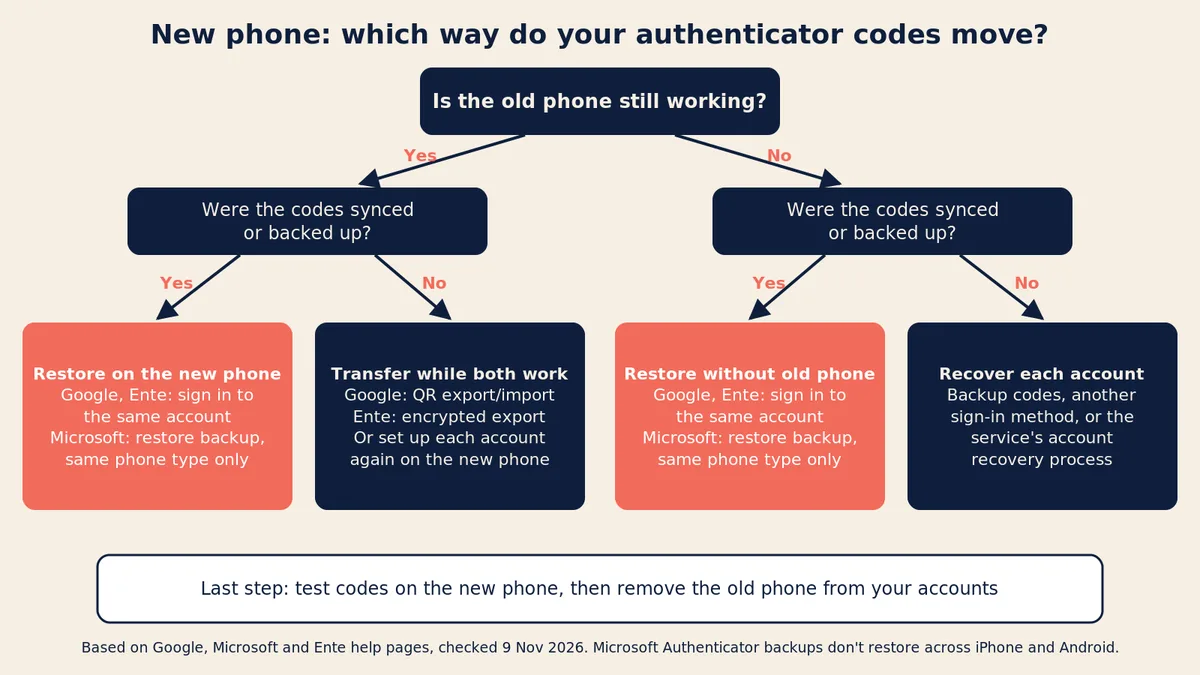
Find your row first. The linked sections have the steps, and each recovery path is cited to the app maker’s help.
| Your situation | Your recovery path | Go to |
|---|---|---|
| Old phone still works, and the app synced or backed up your codes | Restore on the new phone: sign in to the same account in Google Authenticator or Ente Auth, or restore the Microsoft Authenticator backup. Microsoft’s backup restores only to the same phone type (Microsoft) | The section for your app |
| Old phone still works, no sync or backup | Move codes while both phones work: Google’s QR export (Google), Ente’s encrypted export (Ente), or set each account up again on the new phone while the old one can still sign in (Microsoft) | Before you wipe |
| Old phone lost or broken, but the app had a cloud backup or sync | Restore from the sync or backup on the new phone. No old phone needed, as long as you can sign in to the account that holds it. A Microsoft Authenticator backup restores only to the same phone type (Microsoft) | If your old phone is lost |
| Old phone lost or broken, no backup | The codes can’t be brought back. Ente says offline codes “cannot be recovered from the server because they were never uploaded” (Ente). Recover each account with backup codes, another sign-in method, or the service’s recovery process | If your old phone is lost and Backup codes |
Before you wipe your old phone: a checklist
Do these while both phones are in your hands. Microsoft’s guidance on transferring its Authenticator app puts the rule plainly: complete the transfer before you erase, trade in, or recycle the old phone, and keep the old phone until you can sign in to the accounts you use most from the new one.
- List the apps that hold codes. Open each one and note how many accounts it shows.
- Check whether each app syncs or backs up. If an app keeps codes only on the device, you will need its export or transfer feature, or you will need to set each account up again.
- Update the app on the old phone. Google lists the latest version of Google Authenticator on the old device as a requirement for its manual transfer. Microsoft’s iOS troubleshooting asks for Authenticator 6.8.33 or later.
- Save backup codes for important accounts. If anything goes wrong mid-move, these are how you get back in. See the backup codes section below.
- Check your other sign-in methods. Google’s best-practice list for Authenticator includes enrolling in additional forms of 2-Step Verification “to make sure you do not lock yourself out.”
- Move the codes, then test them. Sign in to several accounts using codes from the new phone. Ente’s import guide notes that a success message or an entry count “does not by itself verify the codes.”
- Only then reset the old phone, and remove it from your accounts (covered below).
Google vs Microsoft vs Ente: how each app moves your codes
This table compares only what each app maker’s help pages say. “Not stated” means the page we checked doesn’t say either way. It does not mean the feature is missing.
| App and setup | How codes move | Need the old phone? | iPhone ↔ Android? | What you need on the new phone | What doesn’t come across |
|---|---|---|---|---|---|
| Google Authenticator, signed in to a Google Account | Sync: sign in within the app and codes “are automatically synced” (Google) | No | Not stated by Google | The app (sync needs version 6.0+ on Android, 4.0+ on iOS) and the same Google Account (Google) | Codes saved to a different Google Account. Check which account you’re signed in to (Google) |
| Google Authenticator, without an account | QR-code export on the old phone, import on the new one (Google) | Yes, and Google lists the latest app version on it (Google) | Not stated by Google | The app, plus the old phone to scan from | Any account you don’t select in the export |
| Microsoft Authenticator | Cloud backup: iCloud on iPhone, a Microsoft personal account on Android. Microsoft says Android moves to Google One backup from January 2027 (Microsoft) | No, if backup was on | No: “accounts backed up using an iOS device cannot be restored on an Android device” (Microsoft) | Same phone type. iPhone: iCloud Drive, iCloud Keychain and iCloud Backup on. Android: the personal Microsoft account used for the backup (Microsoft) | Work or school credentials (only the name comes back), passwordless sign-in for personal accounts, and passkeys saved only on the old phone (Microsoft, Microsoft Learn) |
| Ente Auth, with an Ente account | End-to-end encrypted sync across your devices (Ente) | No | Not stated for phones. Ente also shows synced codes on the web at auth.ente.com (Ente) | The app, signed in to the same Ente account (Ente) | Codes made in offline mode, until you sign in on the original device and let it sync (Ente) |
| Ente Auth, “Use without backups” | Encrypted export or local backup, then import (Ente) | Yes, or an export you already made | Not stated | The export file and its export password, which Ente cannot recover (Ente) | Anything not in the export. Ente says device transfers and OS backups “should not be treated as a backup for offline codes” (Ente) |
Google Authenticator
Google’s Authenticator help page describes two ways to move codes: sync through a Google Account, or a manual QR-code transfer.
If your codes are synced to a Google Account
Install Google Authenticator on the new phone and sign in with the same Google Account. Google says that when you sign in within the app on a new device, “your codes are automatically synced to this device.” If codes seem to be missing, Google suggests checking that you’re signed in to the right Google Account, since codes can be saved to different accounts.
If you use Google Authenticator without an account
Without a Google Account, Google says codes stay on the device and “will not be available on your other devices.” You need the manual transfer, which needs both phones. Google’s steps, summarized from its help page:
- On the new phone, install Google Authenticator and tap Get Started. (Google’s list also includes a step to sign in to your Google Account here.)
- On the old phone, open the app’s menu and choose the export option. The label differs by platform in Google’s help:
- Android: Menu > Transfer codes > Export codes
- iPhone and iPad: Menu > Transfer accounts > Export accounts
- Unlock the device when asked, select the accounts you want to move, and tap Next. Google notes that if you move more than one account, the old phone “may create more than one QR code.”
- On the new phone, open the menu and choose the import option (Transfer codes > Import codes on Android, Transfer accounts > Import accounts on iPhone and iPad), then scan each QR code from the old phone.
- Google says you will then get a confirmation that the codes have been transferred.
Google’s help page doesn’t say whether sync or the QR transfer works between an iPhone and an Android phone, so test your codes before you wipe anything.
Microsoft Authenticator
Microsoft Authenticator uses a backup on the old phone and a restore on the new one. The key rule appears on Microsoft’s backup page: you can only back up and restore on the same device type, so “accounts backed up using an iOS device cannot be restored on an Android device.”
What the backup includes
According to Microsoft, the backup covers 30-second codes for personal Microsoft accounts and third-party accounts. Work or school accounts come back as a name only, and you sign in and register them again. Passwordless personal accounts also come back as a name only. Passkeys are handled separately: if a passkey lived only on the old phone, you add a new one on the new phone. For how passkeys move with your account, see our passkey explainer.
Back up on the old phone
On an iPhone, Microsoft says to turn on iCloud Drive, iCloud Keychain, and iCloud Backup, then turn on the Authenticator toggle under Apple Account > iCloud > Saved to iCloud (the path Microsoft Learn gives; Microsoft Support refers only to your Saved to iCloud list). Its troubleshooting also says to open the app at least once before switching phones.
On an Android phone, Microsoft’s steps are: open Microsoft Authenticator, open the menu and select Settings, turn on Cloud Backup, choose a Microsoft personal account to store the backup, and tap OK. Microsoft’s support page also announces a change: “Starting January 2027, you will no longer use your Microsoft personal account to enable backup.” Instead, Microsoft says, you will need to enable Microsoft Authenticator from Google One backup. Check the page if you switch phones after that.
Restore on the new phone
The restore page describes the two platforms differently:
- iPhone: with iCloud Drive, iCloud Keychain, and iCloud Backup turned on, install and open Authenticator. Microsoft says your backed-up codes and account names “will appear.” If the backup does not show up, the troubleshooting step on Microsoft’s backup page is to uninstall and reinstall the app on the new phone.
- Android: open Authenticator and select Restore from backup, then sign in with the personal Microsoft account you used for the backup. Microsoft says to choose Restore from backup or Begin recovery before signing in to any accounts. If you don’t see either option, you need to remove or sign out of all accounts first.
Switching between iPhone and Android? The backup won’t restore, so see the scenario below. After a restore, some accounts may show Sign in to restore your account or Action required. Microsoft says these accounts may need further verification, so sign in to each one to finish setup.
Remove the old phone
Microsoft’s Authenticator FAQ points out that adding the app to a new phone does not remove it from the old one, and that deleting the app from the old phone isn’t enough either. For a personal Microsoft account, Microsoft says to go to the two-step verification area of your Account Security page and turn off verification for the old device.
Other authenticator apps
Many other apps can sync or export codes, but the steps are specific to each app, so follow only that app’s official help. Ente Auth’s sync, offline mode and export are summarized in the comparison table above. To export, Ente’s export guide says to open Settings > Data > Export, choose Encrypted, and set an export password. Ente says that password is not automatically your Ente account password, and that it cannot recover it. Its import guide lists supported sources, including Google Authenticator and 2FAS Authenticator, and cautions that exports “can contain the secrets needed to generate codes, so keep them private.” Before changing devices in offline mode, Ente’s FAQ says to “make an encrypted export or local backup.”
Scenario: switching from Android to iPhone with Microsoft Authenticator
This is one switch walked through two ways, using only Microsoft’s documented behavior. It is an illustration, not a test we ran. Say Microsoft Authenticator on your Android phone holds three entries: your personal Microsoft account, a third-party account that uses 30-second codes (Microsoft’s examples are LinkedIn and Facebook), and a work account.
The catch in both cases: the Android backup won’t restore on the iPhone, even if Cloud Backup was on (Microsoft).
If the old Android phone still works
- Keep the Android phone and don’t reset it. Microsoft says to keep the old phone until you can sign in to the accounts you use most from the new one (Microsoft Learn).
- Install Microsoft Authenticator on the iPhone.
- Add each account again, as Microsoft’s fallback says: “you can add the accounts again” (Microsoft). For the third-party account, sign in to that service using a code from the Android phone, then set up its authenticator option again with the iPhone. The exact steps are on that service’s own help pages.
- For the personal Microsoft account, sign in on the iPhone. For the work account, sign in and register it again, which Microsoft says work or school accounts need even after a normal restore (Microsoft).
- Test a sign-in on each account using the iPhone.
- Remove the Android phone. Microsoft’s FAQ says deleting the app isn’t enough: you also tell Microsoft, or your organization for a work account, to forget the old device (Microsoft).
If the old Android phone is broken
- There is no phone to read codes from and no backup that restores to an iPhone, so each account is recovered on its own.
- Personal Microsoft account: use another verification method or your recovery code, as covered in the lost-phone section below.
- Third-party account: use that service’s backup codes or its account recovery process, then set up the authenticator on the iPhone.
- Work account: your organization controls how a new phone is registered, so ask its IT help desk. To turn off verification for the old device, Microsoft’s FAQ points to the My Apps page or your organization’s company portal (Microsoft).
If your old phone is lost, broken, or already wiped
If your codes were synced or backed up, the restore steps above still work without the old phone (see the comparison table for limits). If the codes were only on the lost device, you have to recover each account one at a time.
Lock down the lost phone. Google advises using the remote erase option for iOS or Android so nobody else can read codes on it. If that isn’t possible, Google says synced codes can be removed by removing the device from your Google Account. Unsynced codes mean visiting each site, removing the old codes, and setting up the new phone.
For your Google Account, Google’s 2-Step Verification troubleshooting page recommends signing out of the lost phone and changing your password. Google lists other ways to prove it’s you: another phone signed in to your Google Account, another phone number you added, a saved backup code, a security key, or a passkey created on another device. A device where you chose “Don’t ask again on this computer” may also let you in, and your carrier can move your number to a new phone or SIM. If none of that works, Google’s account recovery tips suggest using a device, browser, and location where you usually sign in, and answering as many questions as you can. In the same troubleshooting page’s section on a lost security key, Google notes that if you don’t have another second step or forgot your password, “it can take 3-5 business days for Google to make sure it’s you.”
For your Microsoft account, use another verification method or your recovery code (see below). Microsoft’s account recovery form help says that if two-step verification is on and you can’t use any of the alternate methods, “we cannot help you, sorry.” Microsoft’s two-step verification page adds that regaining access after losing a contact method can take 30 days, and you may lose access entirely. It recommends having three pieces of security info on your account.
For every other service, our advice is to use that service’s backup codes or its account recovery process. Once you are back in, remove the old authenticator entry and set up the new phone.
Backup codes: what they are and how to store them
Backup codes (some services call them recovery codes) are codes you create in advance for when your phone isn’t available. Here is how Google and Microsoft describe theirs.
Google issues sets of 10 backup codes. According to Google’s backup codes help:
- Each code works once. After you use one, it becomes inactive.
- You can create a new set at any time. Doing so makes the old set inactive.
- To find them, go to your Google Account, click Security & sign-in, and under “How you sign in to Google” click 2-Step Verification. Under “Backup codes,” Google lists options to get, refresh, delete, download, or print them.
- To use one at sign-in, click Try another way, then Enter one of your 8-digit backup codes.
- Google never asks for a backup code except at sign-in, and suggests printing a copy and keeping it “like where you keep your passport or other important documents.”
Microsoft uses a 25-digit recovery code for a Microsoft account. According to Microsoft’s recovery code help:
- You generate it on the Manage how I sign in page (account.live.com/proofs/manage/additional) by selecting Generate a new code.
- A new code makes any previous code stop working.
- You can’t retrieve an existing code later. Microsoft advises printing it and not storing it on a device you use to sign in.
Storing them. Keep backup codes away from the phone they back up. Paper in a safe place works, as both Google and Microsoft suggest. So does a password manager you can reach from another device. Security in a Box suggests attaching them to the account’s entry in a password manager and warns that anyone who has them can use them to log in. Treat them like a password, and generate a fresh set if you think they have been exposed.
Why codes don’t work on the new phone
Authenticator codes are time-based. As MDN explains, the site and your app each calculate the same code from a shared secret and the current time. The code is usually six digits and usually valid for 30 seconds. If the phone’s clock is wrong, it calculates the code for the wrong moment. The TOTP standard, RFC 6238, allows for some “clock drifts” but recommends servers accept only a limited window.
When a code doesn’t work, Google’s help asks you to check that:
- You entered the code before it expired.
- You entered the code for the correct app, service, and account.
- The time on your device is synced and correct for your local time zone.
Google Authenticator used to offer a “time correction” setting. Google says that setting “is no longer available in version 7.0” and that the app now uses your phone’s operating-system time. If codes are wrong, check the phone’s date and time settings instead.
One more move-specific cause: the account was never moved. Work or school accounts in Microsoft Authenticator, and any account you didn’t select in an export, need to be set up again. Compare the account list on both phones before you reset the old one.
FAQ
Do authenticator codes transfer automatically with my phone backup?
Not necessarily. Each app uses its own sync or backup, with the limits shown in the comparison table above. Ente says operating-system backups should not be treated as a backup for its offline codes.
How long does it take to set up Google Authenticator for my Google Account again?
Google says it “may take up to 7 days” for Google Authenticator to appear as a sign-in option after you set it up for your Google Account, and that a trusted passkey or security key may speed that up.
Should I delete the app from my old phone?
Yes, but only after the new phone works, and deleting the app isn’t the last step. Microsoft says you also need to remove the old device from your account so sign-in notifications stop going to it. For Google Authenticator codes synced to your Google Account, Google says you can remove a lost device from your account.